
How to connect the WhatsApp Business app to n8n with the official WhatsApp API
Keep the WhatsApp Business app on your phone and automate the same number in n8n on the official API, with an AI assistant that pauses when your team replies.
To connect the WhatsApp Business app to n8n on the official API, connect your number to Hello with coexistence, install the Hello community node in n8n, and start your workflow with the Hello Trigger. Coexistence is a WhatsApp feature that keeps the number active in the WhatsApp Business app on your phone while the same number is connected to the API. Your team keeps answering from the phone, and n8n answers the rest.
In this guide you build a small assistant: a customer writes to your number, an AI agent in n8n replies, and when someone from your team replies from the app, the assistant steps back for that customer. You do not scan a QR code, create a Meta developer app or copy access tokens. Allow about 30 minutes.
Status of the Hello node: the node is published on npm as
@lakshyapocketlab/n8n-nodes-helloand is in n8n’s verification review for use on n8n Cloud. Until the review ends, install it on self-hosted n8n. On n8n Cloud, follow How to connect your WhatsApp Business number to n8n, which uses the built-in Webhook and HTTP Request nodes instead.
Why use the official API instead of a QR code
Most free tutorials connect WhatsApp to n8n with a tool that scans a QR code and imitates WhatsApp Web. It is quick to set up, but WhatsApp’s terms do not allow it, and a banned number usually cannot be recovered. The official API is the interface Meta provides for businesses, so automation on it is allowed, and it has documented rules for templates, opt-in and message quality. The trade-off is that business-initiated messages are charged by Meta. Our guide to official and unofficial WhatsApp APIs explains the differences in detail.
Until recently, the official route meant giving up the app on your phone. With coexistence you keep it, and with the Hello node you do not need to configure a Meta developer app in n8n either.
How the pieces fit together
Customer ──► WhatsApp ──► Hello Trigger (n8n) ──► AI Agent ──► Hello node: Send Text ──► Customer ▲Your team, replying in the WhatsApp Business app ──► echo event ──► "a person is handling this"- Hello Trigger starts the workflow for one phone number. When you publish the workflow, the trigger registers n8n’s address for that number with Hello, and removes it when you unpublish it.
- Hello node sends messages, templates and media through Hello’s API.
- Echo events are the replies your team types in the WhatsApp Business app. WhatsApp sends a copy of each one to the API, so n8n knows when a person has joined the conversation.
What you need
| You need | Notes |
|---|---|
| A number in the WhatsApp Business app | The personal WhatsApp app does not support coexistence. Move the number to the WhatsApp Business app first |
| A Hello account with a plan that includes direct webhook | The Hello Trigger uses it. If your plan does not include it, the Webhooks page in Hello tells you so |
| Self-hosted n8n with a public HTTPS address | Only Owner and Admin users can install community nodes. Set WEBHOOK_URL to your public address so n8n gives WhatsApp the correct webhook URL |
| A model for the AI agent (optional) | For example an OpenAI, Anthropic or Gemini credential in n8n. You can skip the AI part and send a fixed reply instead |
Step 1: connect your WhatsApp Business app number to Hello
- Create a Hello account and open Accounts → Add account.
- Select Continue with Facebook, which opens Meta’s Embedded Signup, and sign in with the Facebook account that manages your business.
- When asked which number to use, choose to connect your existing WhatsApp Business app number and enter it.
- Confirm the connection on your phone, following the instructions WhatsApp shows in the WhatsApp Business app.
- Choose whether to share your chat history. You can decline and still use coexistence.
Keep the WhatsApp Business app open while the first sync runs. The number then appears in WhatsApp Accounts in Hello. The coexistence guide lists what syncs and the limits Meta sets.
Step 2: create a Hello API key
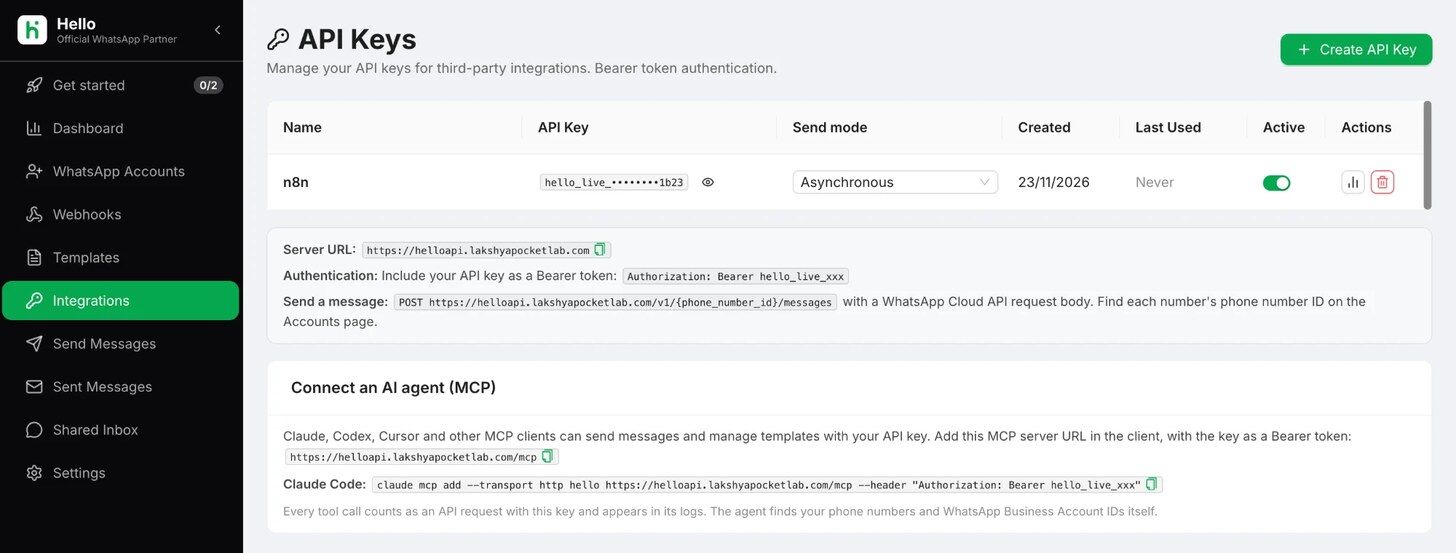
- In Hello, open Integrations and select Create API Key.
- Copy the key. It starts with
hello_live_.
n8n uses this key for everything: loading your numbers and templates, sending messages and registering the trigger. Treat it like a password.
Step 3: install the Hello node in n8n
-
Open
https://<your_n8n_url>/settings/community-nodes, or go to Settings → Community Nodes. -
Select Install a community node (or Install, if you already have community nodes).
-
In npm Package Name, enter:
@lakshyapocketlab/n8n-nodes-hello -
Select I understand the risks of installing unverified code from a public source.
-
Select Install.
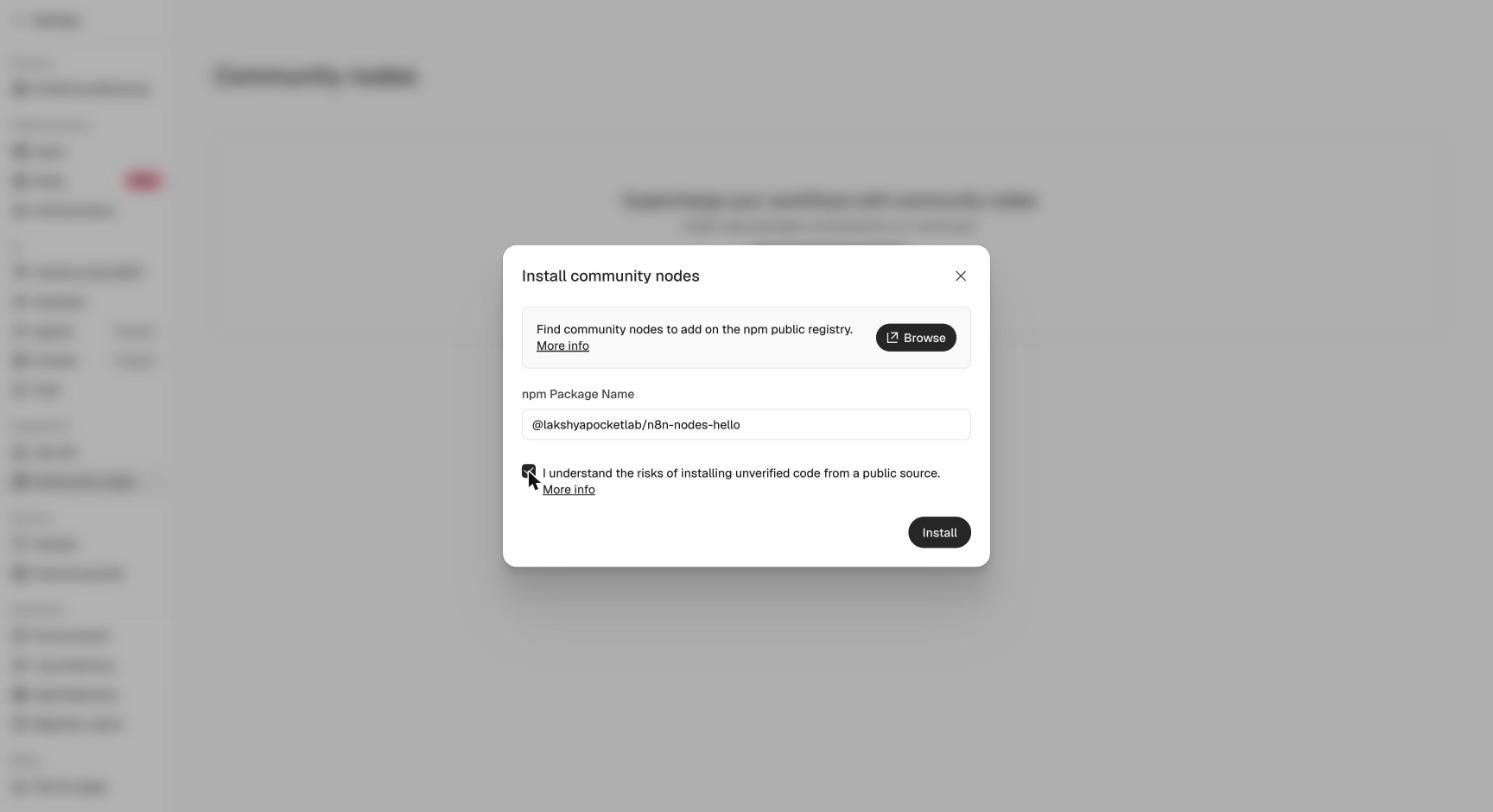
n8n installs the package and lists it under Community nodes.
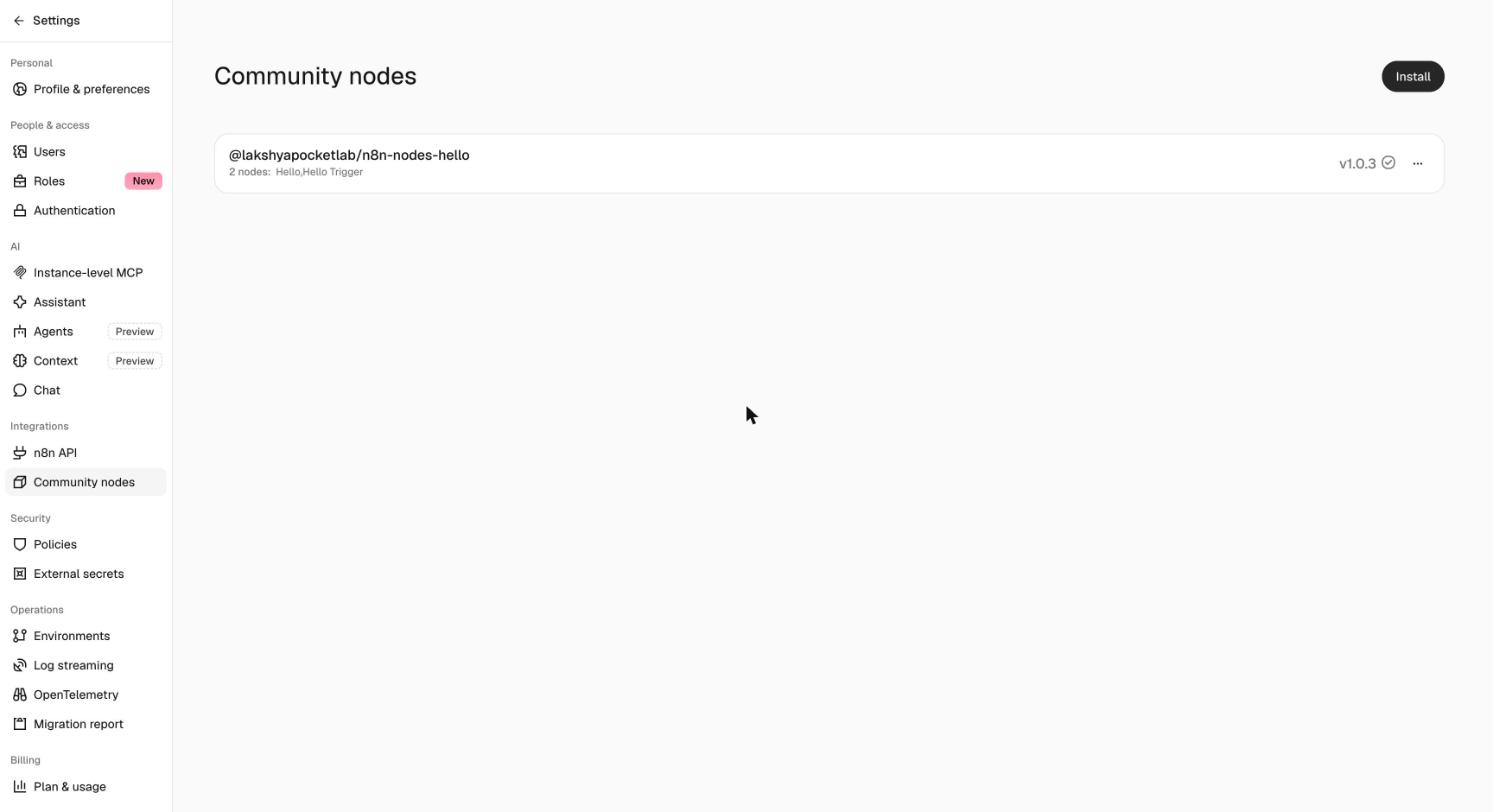
You now have two new nodes: Hello and Hello Trigger. The package has no runtime dependencies and is published from GitHub Actions with npm provenance, so you can check that the code on npm matches the public repository.
Step 4: add the Hello credential
- Create a new workflow, add a Hello Trigger node and open Credential to connect with → Create new credential.
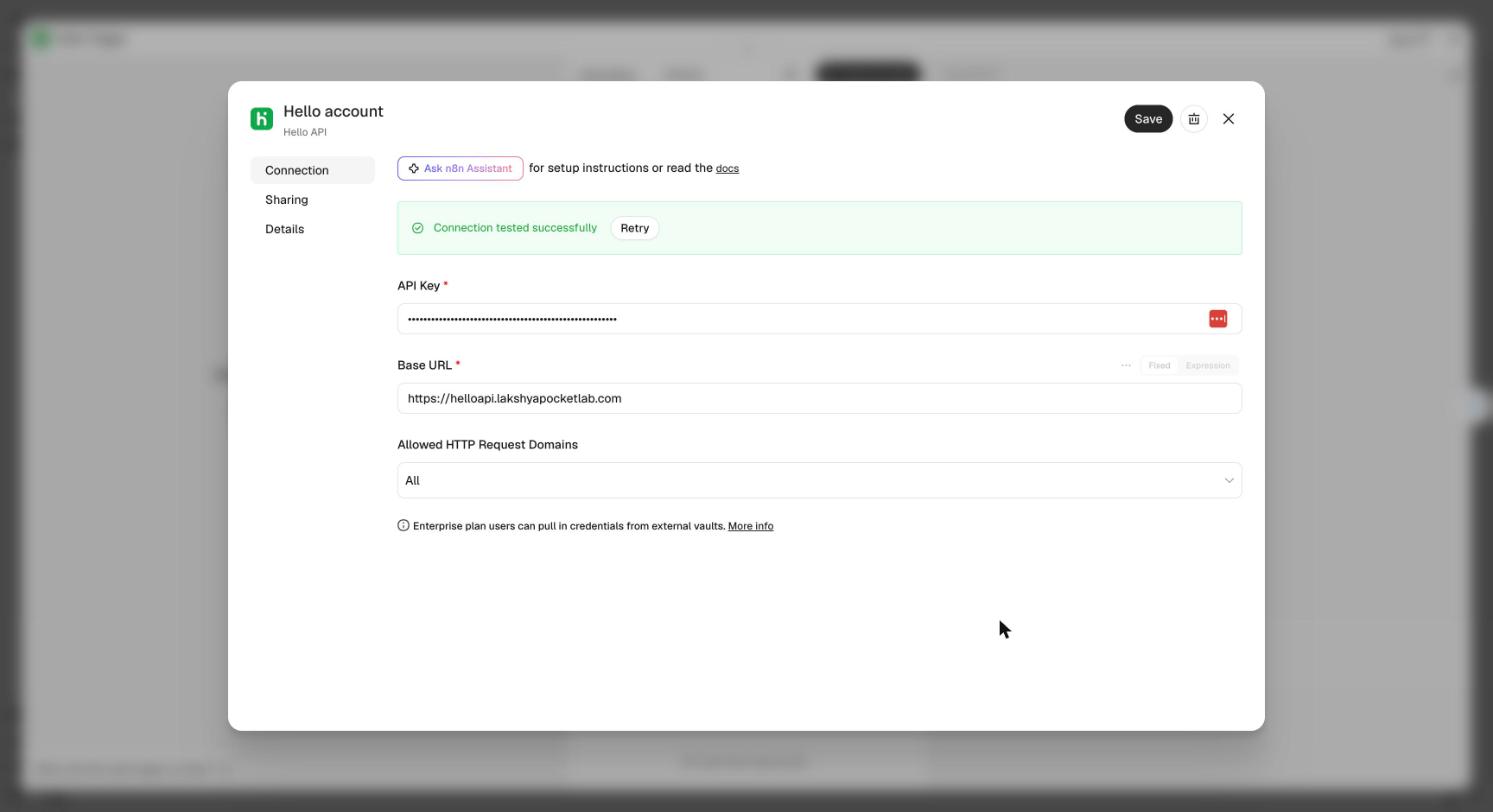
- Paste the key from step 2 into API Key. Leave Base URL as it is.
- Select Save. n8n tests the credential by listing your phone numbers, so Connection tested successfully means the key works.
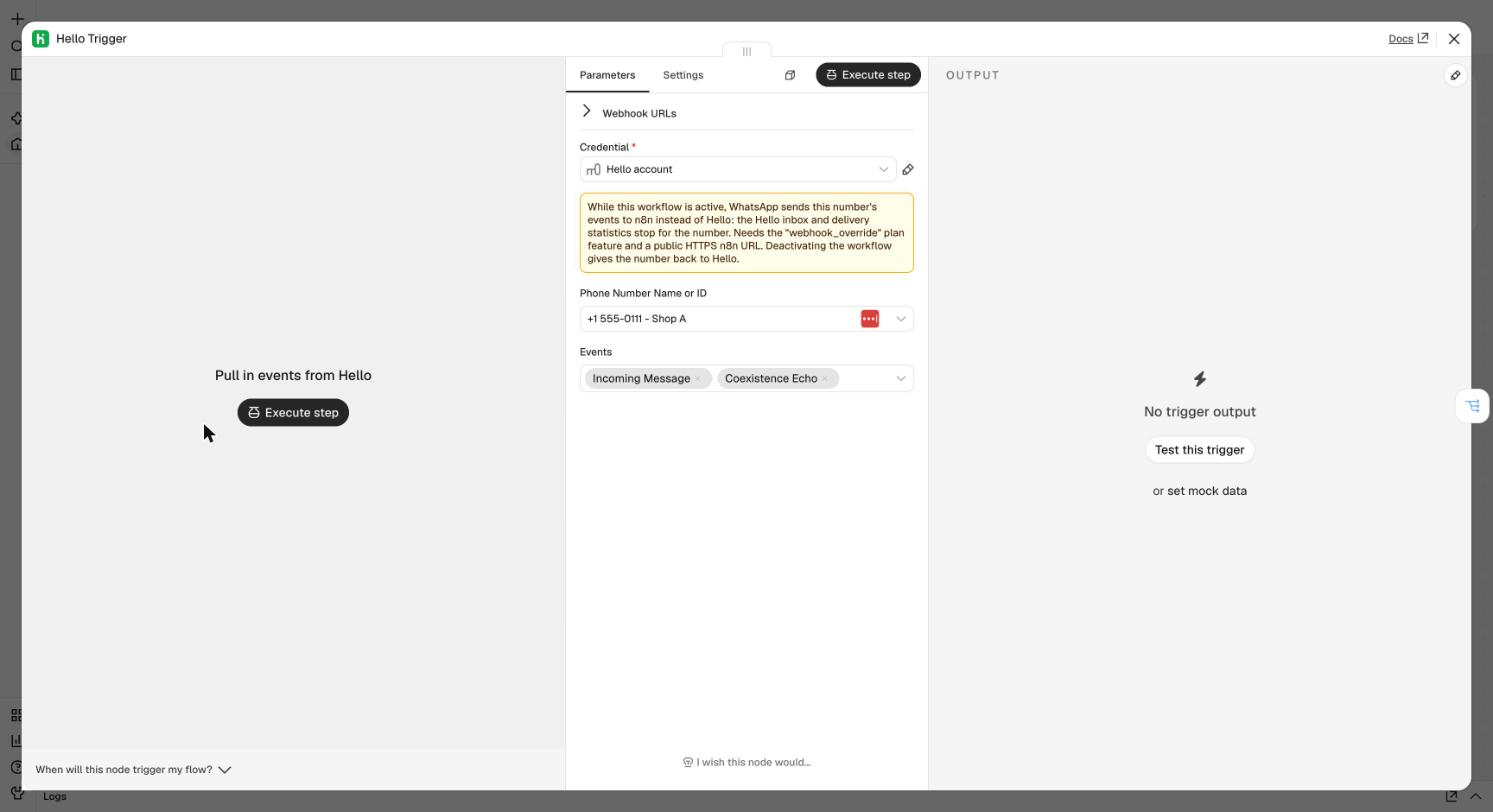
Step 5: set up the Hello Trigger
Configure the trigger like this:
- Phone Number: the number you connected in step 1. The list loads from your Hello account.
- Events: Incoming Message and Coexistence Echo. Leave Status Update off.
Incoming Message starts the workflow when a customer writes. Coexistence Echo starts it when someone on your team replies from the WhatsApp Business app, which step 7 uses to pause the assistant. Status updates (sent, delivered, read) would start the workflow several times for every message, so leave them off unless you track delivery.
Every event becomes one item with an event field: message or echo. A message item also has from (the customer’s number), contact_name, type (text, image, audio and so on) and the full message. An echo item has to, the customer your team replied to.
Add a Switch node after the trigger with two outputs: {{ $json.event }} equals message, and {{ $json.event }} equals echo.
Step 6: reply with an AI agent
Here is the whole workflow you are building. Steps 6 and 7 fill in each part.
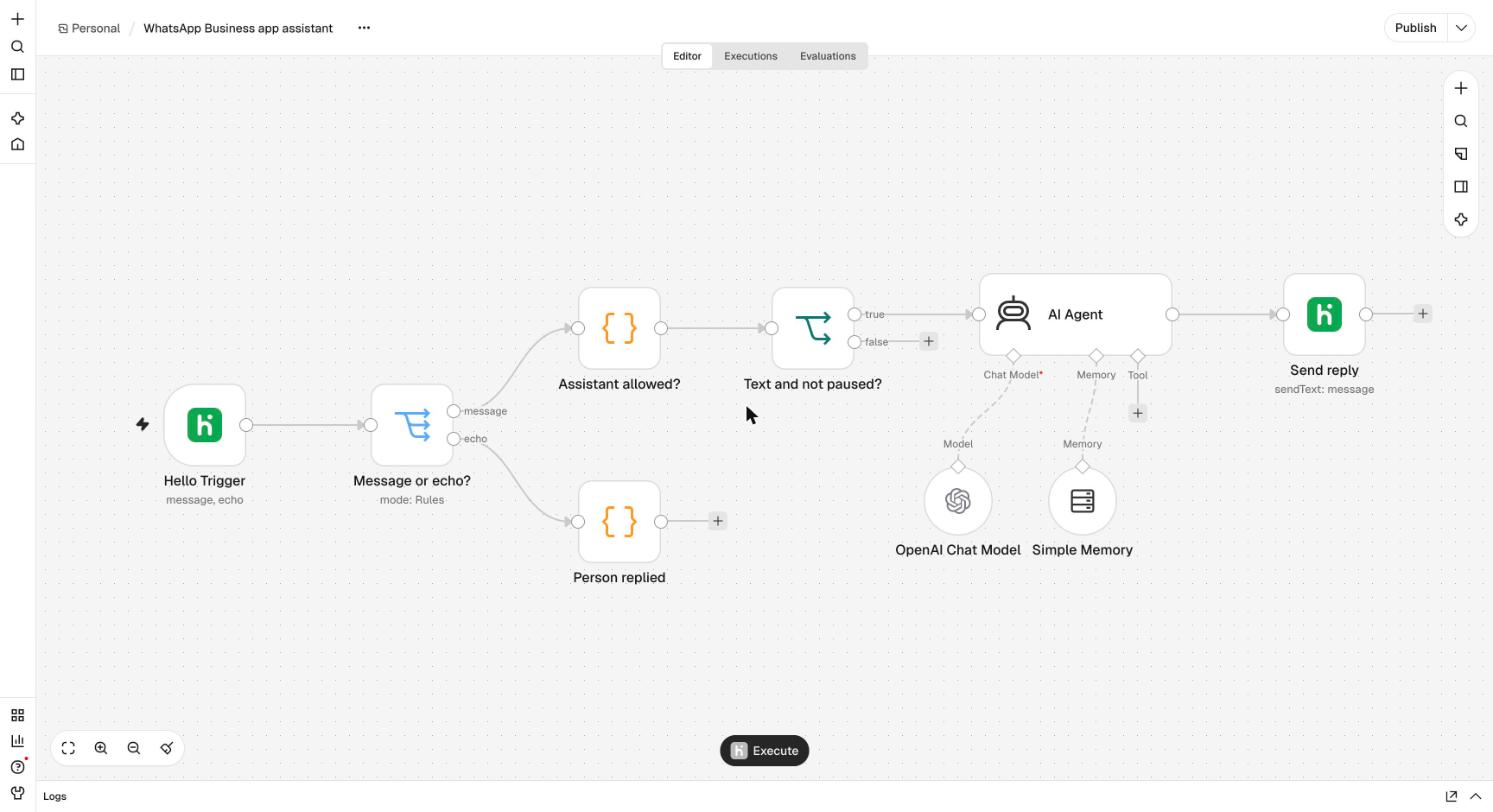
On the message output, build the reply:
- IF node named “Text and not paused?” with the condition
{{ $json.type }}is equal totext. Step 7 adds a second condition. Voice notes, images and stickers go to the false output, where you can later send a fixed reply such as “Thanks, a person will reply soon.” - AI Agent node, on the true output:
- Source for Prompt: Define below. Prompt:
{{ $json.message.text.body }} - System Message: who the assistant is, what it may answer, and what it must not do. For example: “You are the assistant of Ana’s Bakery. Answer questions about opening hours, prices and orders using only the information below. Keep replies under 60 words. If you do not know, say that a person will reply.” Then paste your opening hours, prices and policies.
- Chat Model: connect your model, for example OpenAI or Anthropic.
- Memory: add Simple Memory with Session ID set to Define below and Key
{{ $('Hello Trigger').item.json.from }}. Each customer then gets a separate conversation history, so the assistant remembers what that customer said a few messages ago.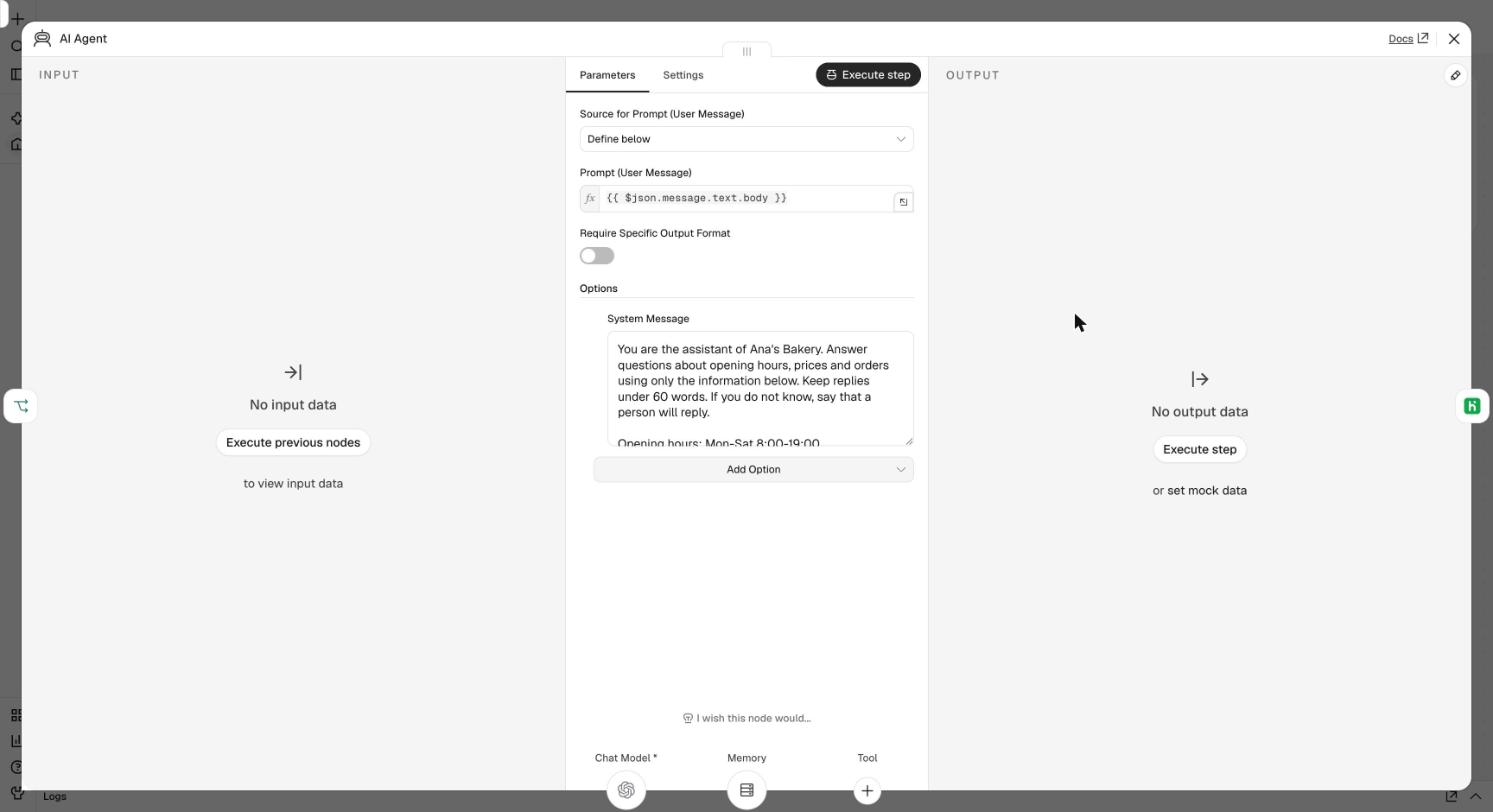
- Source for Prompt: Define below. Prompt:
- Hello node named “Send reply”, after the agent:
- Resource: Message. Operation: Send Text.
- Phone Number:
{{ $('Hello Trigger').item.json.phone_number_id }} - To:
+{{ $('Hello Trigger').item.json.from }} - Text:
{{ $json.output }} - Options → Idempotency Key:
{{ $('Hello Trigger').item.json.message.id }} - Options → Reply to Message ID: the same expression, if you want the reply to quote the customer’s message.
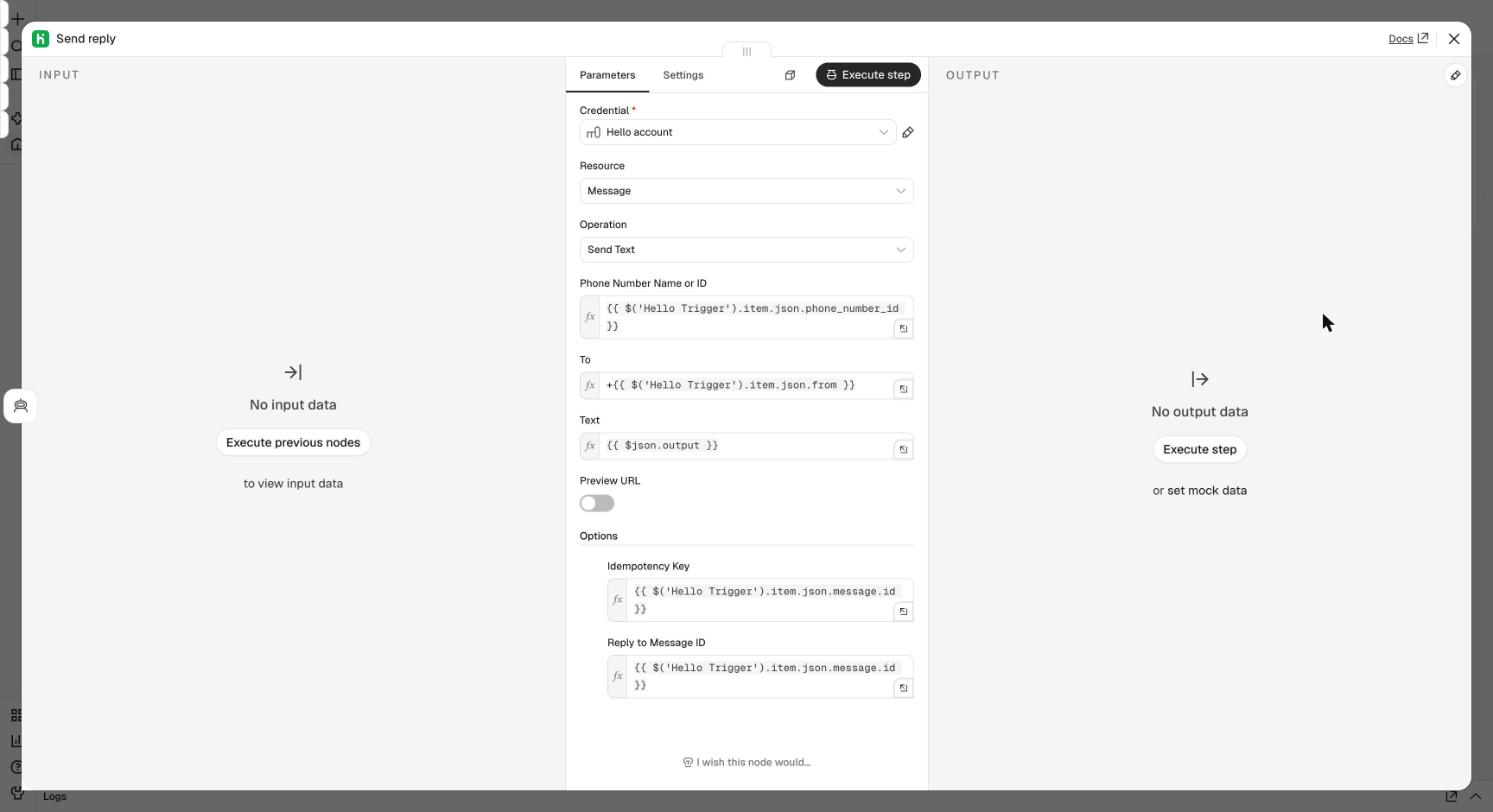
The idempotency key matters more than it looks. If an execution is retried, Hello sees the same key and does not send the reply a second time, so the customer never gets the same answer twice.
A free-form reply like this works for 24 hours after the customer’s last message, which is always true when the customer has just written. To write first, or later, use Send Template with an approved template. See the 24-hour window.
Step 7: pause the assistant when your team replies
Customers should not get an AI answer while a person is already helping them. The echo events tell n8n when that happens.
-
On the echo output of the Switch, add a Code node named “Person replied”:
const data = $getWorkflowStaticData('global');data.humanUntil = data.humanUntil || {};for (const item of $input.all()) {// Pause the assistant for this customer for 2 hours.data.humanUntil[item.json.to] = Date.now() + 2 * 60 * 60 * 1000;}return []; -
Between the Switch’s message output and the IF node, add a Code node named “Assistant allowed?”:
const data = $getWorkflowStaticData('global');const paused = (data.humanUntil || {})[$json.from];return { json: { ...$json, assistantAllowed: !paused || paused < Date.now() } };Set Mode to Run Once for Each Item.
-
In the IF node, add a second condition joined by AND:
{{ $json.assistantAllowed }}is true.
Now, when someone on your team answers a customer from the phone, the assistant stays quiet for that customer for two hours and then takes over again. Change the duration to suit your team. n8n saves workflow static data only in production executions, that is, while the workflow is published, so test this step after step 8. For a pause your team can also set by hand, store the same value in an n8n Data table or a spreadsheet instead.
Step 8: publish and test
- Save the workflow and select Publish (on n8n versions before 2.0, switch the workflow to Active). The Hello Trigger registers the webhook for your number. If publishing fails, see the troubleshooting section below.
- From another phone, send a text message to your business number. Within a few seconds the assistant replies, and the execution appears under Executions in n8n.
- Reply to that customer from the WhatsApp Business app on your phone. An echo execution appears, and the next message from that customer gets no AI reply.
Test with the published workflow. Test this trigger (called Listen for test event in older versions) registers a different, temporary address for the number, so do not use it while the published workflow is running.
What changes in Hello while the workflow is published
The Hello Trigger uses Hello’s direct webhook, which sends one number’s events straight to n8n.
- Hello’s inbox and delivery figures stop updating for that number. Incoming messages and statuses go only to n8n. Your other numbers are not affected.
- Sending still works through Hello, including from the Hello node.
- The WhatsApp Business app keeps working on your phone as before.
- It is reversible. Unpublish (deactivate) the workflow and the trigger hands the number back to Hello at once.
- Use one Hello Trigger per number. A second workflow for the same number would take the webhook from the first.
Troubleshooting
| What you see | Cause and fix |
|---|---|
| Publishing fails with a 403 error | Your Hello plan does not include direct webhook. The Webhooks page in Hello shows which plans do |
| Publishing fails with a verification or URL error | WhatsApp could not reach n8n. Check that n8n is reachable from the internet over HTTPS, that WEBHOOK_URL is set to that address, and that the full webhook URL is 200 characters or fewer |
| No executions when a customer writes | The workflow is not published, or a test run replaced the address. Unpublish and publish the workflow again |
| The assistant answers its own messages or your team | Coexistence Echo is connected to the reply branch. Echoes must only go to the “Person replied” branch |
| The reply fails with a 24-hour window error | The customer last wrote more than 24 hours ago. Send an approved template instead |
| Hello and Hello Trigger nodes are missing | The package is not installed, or your user is not an Owner or Admin. On n8n Cloud the node is available only after n8n verifies it |
Where to go from here
- Order updates: start a workflow from your shop and send an approved template with the Hello node’s Send Template operation. The node repository has an importable example.
- Buttons and lists: reply with Send Interactive Buttons or Send Interactive List instead of plain text.
- Keep a record: send both messages and echoes to your CRM or a spreadsheet, so every conversation, including the replies typed on the phone, is in one place.
Frequently asked questions
Can I keep using the WhatsApp Business app after connecting the number to n8n?
Yes. This guide uses coexistence, a WhatsApp feature that keeps a WhatsApp Business app number active on your phone while the same number is connected to the official API. Your team keeps replying from the app, and n8n receives the customers’ messages and the replies your team types.
Does this work on n8n Cloud?
Not yet. The Hello node is published on npm and is in n8n’s verification review. Until n8n approves it, it can be installed only on self-hosted n8n. On n8n Cloud, use the Webhook and HTTP Request nodes instead, as described in our guide to connecting a WhatsApp Business number to n8n.
Do I need a Meta developer app or a Facebook access token?
No. You connect the number once through Meta’s Embedded Signup inside Hello, and n8n talks to Hello with an API key. You do not create a Meta app, a system user or a permanent token, and n8n’s own WhatsApp Trigger is not used.
Is there a risk of my number being banned, like with QR-code tools?
The official API is the interface Meta provides for businesses, so the number is not at risk for using automation itself. Meta’s rules still apply, for example on message quality, opt-in and templates. QR-code tools imitate WhatsApp Web, which WhatsApp’s terms do not allow. Our guide to official and unofficial APIs compares the two.
Can the bot send the first message to a new customer?
Only as an approved template. Free-form replies, including the AI assistant in this guide, are allowed for 24 hours after the customer last wrote to you. Use the Hello node’s Send Template operation to start a conversation or to write after that window.
Can I use it with WhatsApp groups?
No. The official WhatsApp API sends and receives one-to-one messages with customers. Messages in groups are not delivered to the API.
What does it cost?
Your Hello plan, plus Meta’s charges for the messages that Meta bills, which depend on the message category and the customer’s country. Replies inside the 24-hour window are free up to Meta’s monthly allowance. n8n and the Hello node have no extra fee.